Whether you just shot a 30-item product drop, a weekend event, or a blog photo essay, the painful part is rarely grading the first frame. It is repeating the exact same exposure, color recipe, watermark, and resize settings 29 more times. Cloud batch tools force you to upload hundreds of megabytes of private photos first—often behind per-file caps or monthly subscriptions.
1. Real time & privacy comparison for a 30-photo set
| Workflow (30 × 4K photos) | Upload wait | Effort per set | Privacy boundary |
|---|---|---|---|
| Manual one-by-one editing | None | 30 repeat import/grade/save cycles (~15–25 min) | Local |
| Cloud batch web tools | ~300 MB upload + download | Queue throttling, file limits, or watermarks | Files uploaded to external servers |
| visdraw local WebGL batch ZIP | Zero uploads | Grade 1 hero frame → drop set → download ZIP (~1–2 min) | 100% inside your browser |
2. The 4-step local batch workflow
- 1
Step 1: Pick one representative hero photo
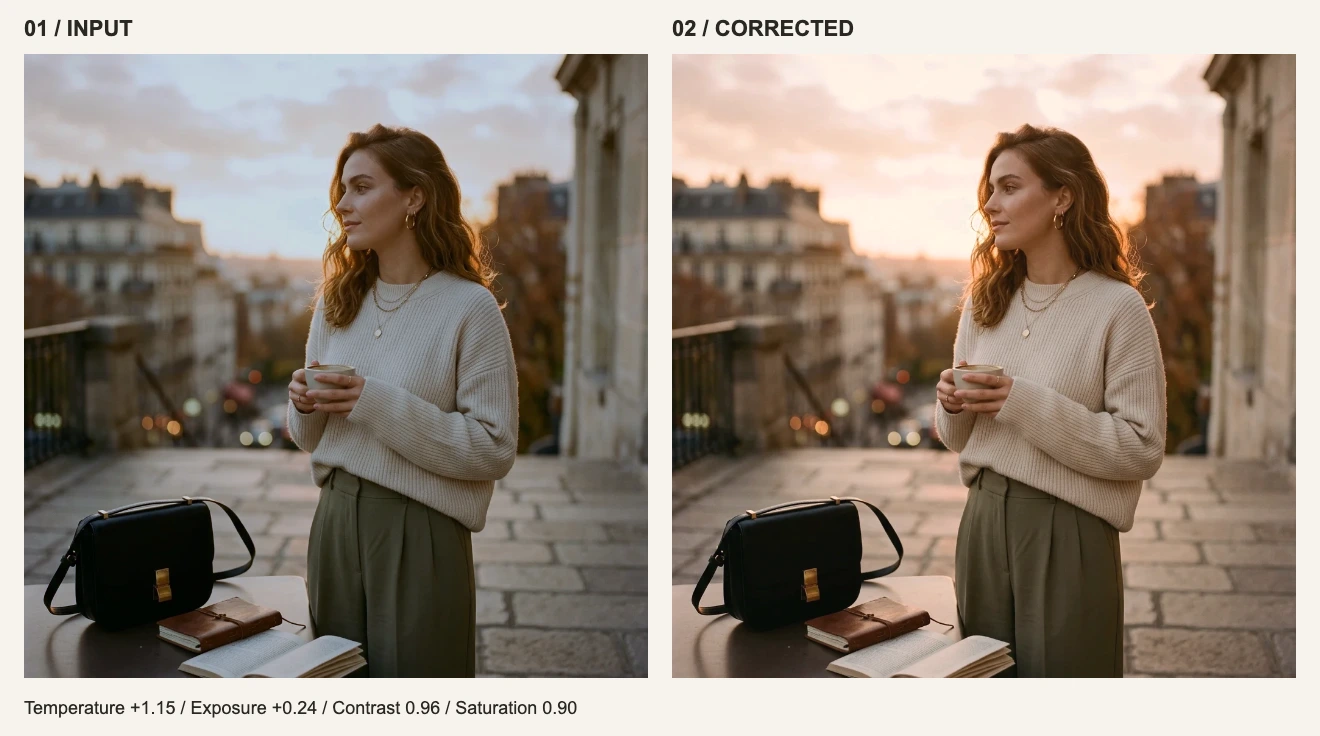
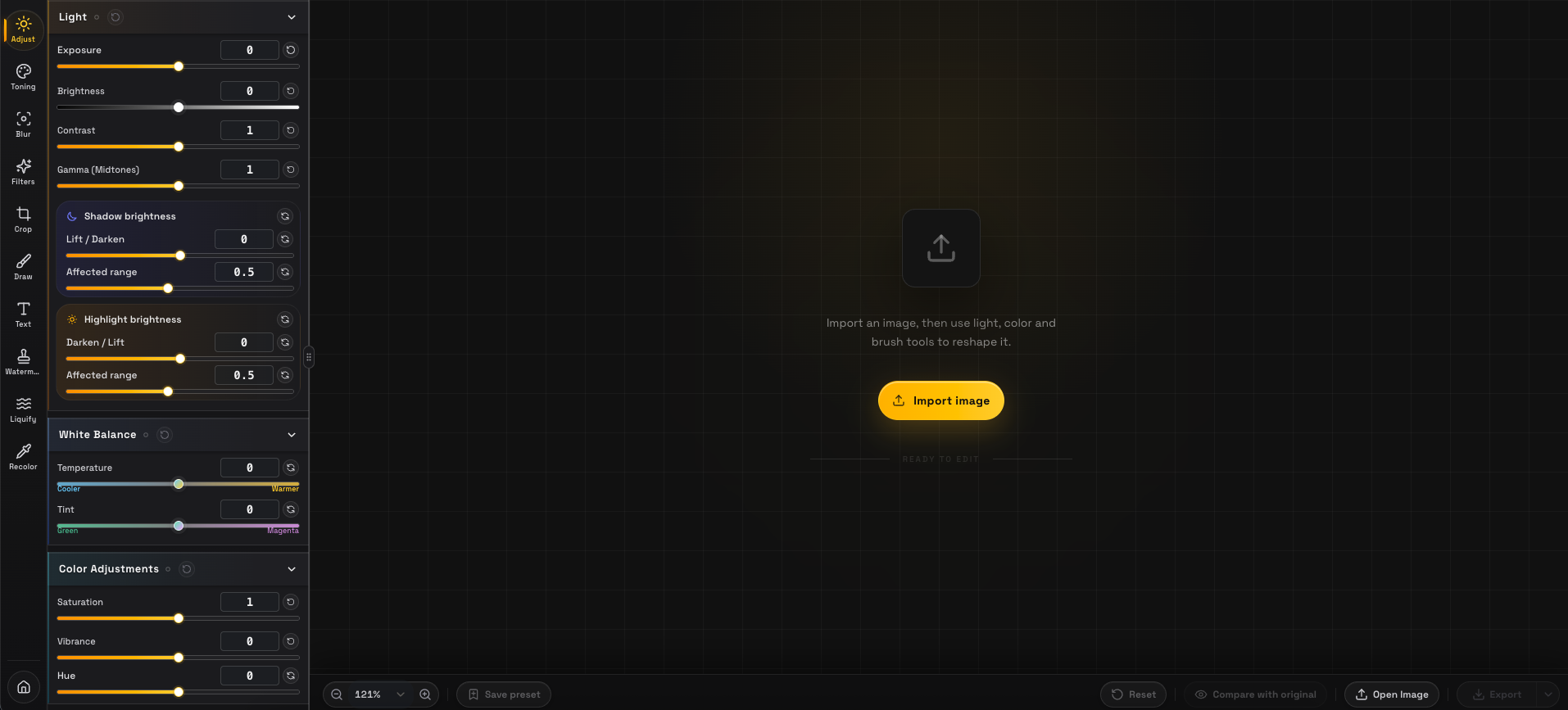
Avoid picking the darkest or brightest outlier. Load a balanced frame from the shoot, pick a built-in look or dial in white balance, exposure, shadows, and saturation.
- 2
Step 2: Add an optional brand watermark once
If you are delivering client proofs, catalog photos, or social assets, configure text or logo watermark placement and opacity in the Watermark panel—it automatically carries over into batch export.
- 3
Step 3: Open Batch Export and drop in the full set
Click Batch Export in the bottom bar and select your entire folder of photos. visdraw queues them directly from local disk without uploading a single byte.
- 4
Step 4: Set unified format & dimensions, then download ZIP
Choose WebP 85 or JPG 85 for fast web stores, or lossless PNG for archival masters. Set your target max edge or keep full original resolution, and download one clean ZIP archive.
3. Pro tip: group by lighting before running a batch
- Ecommerce & studio catalogs: Consistent lighting across angles makes an entire product drop ready in a single batch run.
- Event & client proof galleries: Split by venue lighting and deliver a cohesive, watermarked preview set minutes after wrapping.
- Blog & newsletter galleries: Resize and convert an entire article’s screenshots or photos into crisp WebP 85 files in one ZIP.
Frequently asked questions
How many photos can local batch export process at once?
visdraw supports up to 40 photos per batch, rendering sequentially on your local GPU while recycling WebGL textures and streaming bytes into a standard ZIP archive. Typical laptops handle 20–40 high-resolution photos smoothly in 1–2 minutes. For massive 50MP+ files, batches of ~20 images keep browser memory comfortable.
Are my photos uploaded to build the ZIP archive?
No. Decoding, WebGL grading, JPG/WebP/PNG encoding, and ZIP creation all run 100% locally in your browser.
Can I preview batch mode before upgrading to Pro?
Yes. Free users can open the batch modal and preview queued images with their active look; one-click full batch rendering and ZIP download is unlocked with the $29 Pro buyout.